1 – Where Do I Start?
Click the UTIA News icon in UTIA Custom Blocks.
2 – Set Options for UTIA News
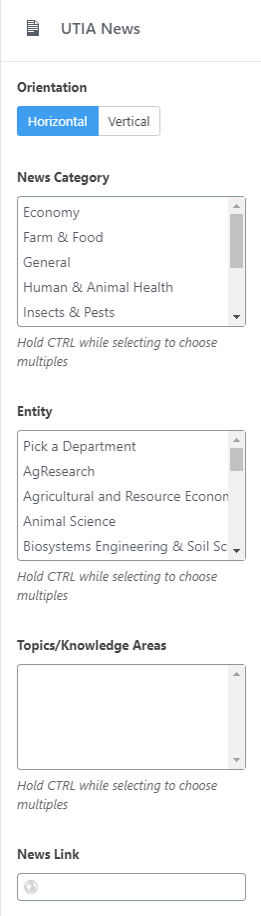
Using the options in the right sidebar, set options for this block.
Select the Orientation of the News block. Then,
- Click on News Category (you may choose more than one option).
- Click on Entity (you may choose more than one option).
- Click on Topics/Knowledge Areas (you may choose more than one option).
- Type or paste the URL for the News Link where visitors will go when “View More News” is clicked.
To get the link for “View More News”:
- Go to UTIA News site.
- In upper right-hand corner, under NEWS BY ENTITY, click on the arrow to the right of Select a Site.
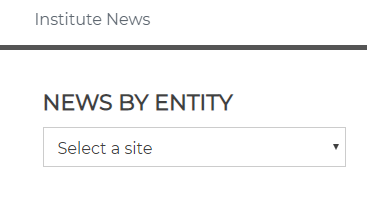
- Scroll down to desired department and click on department name.
- Copy the URL of the department news page.
- Paste the link in the News Link text box, at bottom of the right sidebar.
- Update the page and ensure that the link works by clicking on View More News at the bottom of the News Widget.
3 – Finished Product
NEWS HIGHLIGHTS