1 – Where Do I Start?
The UTIA Hero Carousel block allows you to display up to three featured slides at the top of your website’s homepage. Each slide can include a background image, headline, supporting text, and call-to-action button.
You can view an example on the UTIA Solutions website.
Add the UTIA Hero Carousel Block
- Edit the page where you want to add the hero carousel.
- Click the Add Block (+) button.
- Under UTIA Custom Blocks, select UTIA Hero Carousel.
The Hero Carousel block will be added to the page.

2 – Configure Carousel Slides
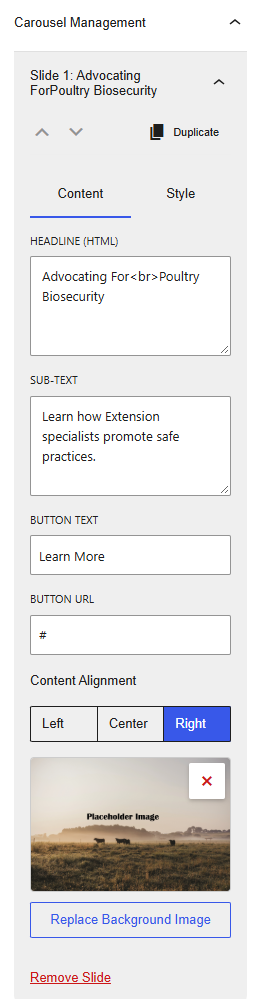
Use the Carousel Management settings in the right sidebar to configure each slide.
Content Settings
For each slide:
- Enter a Headline.
- To force a line break, use the HTML tag
<br>. - Keep headlines concise. Long headlines may wrap to multiple lines and reduce the available space for other content within the carousel.
- To force a line break, use the HTML tag
- Enter the Subtext.
- Use brief, supporting text that complements the headline. Excessively long subtext can overfill the content area and may cause the button to move out of view on some screen resolutions and devices.
- Enter the Button Text.
- Enter the Button URL.
- Select the desired Content Alignment.
- Click Replace Background Image and choose an image from the Media Library.
Content Best Practice
- For the best experience across desktop, tablet, and mobile devices, keep both headlines and subtext short and focused. Before publishing, preview the carousel at multiple screen sizes to ensure the headline, subtext, and button remain visible without overlapping or being pushed below the visible content area.
- For the best user experience and accessibility, avoid placing phone numbers, email addresses, or physical addresses within carousel text. Some browsers and devices may automatically convert this content into unintended links. When directing visitors to take an action, use the carousel’s button feature instead to provide a clear and consistent call to action.
Style Settings
Customize the appearance of the slide by selecting:
- Headline Font Size
- Headline Typography
- Headline Font Style
- Headline Text Transform
- Uppercase
- Lowercase
- Capitalize Each Word
- Headline Text Color
- Subtext Font Size
- Subtext Text Color
Accessibility Tip:
Ensure sufficient color contrast between the text and background image. Use light text on dark images and dark text on light images to improve readability and accessibility.
Image Focal Point
Set the Image Focal Point to control which portion of the image remains visible across various screen sizes. This helps ensure important content within the image stays in view.

Add Additional Slides
- Click Add Slide at the bottom of the Carousel Management panel.
- Repeat the setup steps for each additional slide.
Note: The UTIA Hero Carousel supports a maximum of three (3) slides.
3 – Preview and Publish
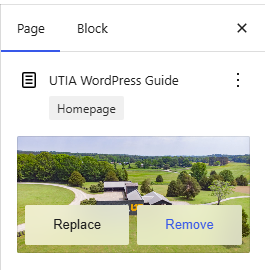
- If the homepage already has a featured image, remove it before publishing:
- In right sidebar, select Page tab.
- Hover over the existing featured image.
- Click Remove button.
- Click Preview to review the carousel on desktop, tablet, and mobile devices.
- Verify that:
- Existing featured image has been removed.
- Images display correctly.
- Text is readable.
- Buttons link to the correct destination.
- Slide content meets accessibility guidelines.
- Click Publish or Update to make your changes live.
4 – Final Product
If there is only one slide in the hero carousel, visitors will see one image with messaging and call to action displayed at the top of the homepage, with the title bar below the UTIA Hero Carousel.

For hero carousels with more than one slide, visitors will see a rotating hero carousel featuring up to three slides with custom images, messaging, and calls to action displayed at the top of the homepage, with the title bar below the UTIA Hero Carousel.