1 – Where Do I Start?
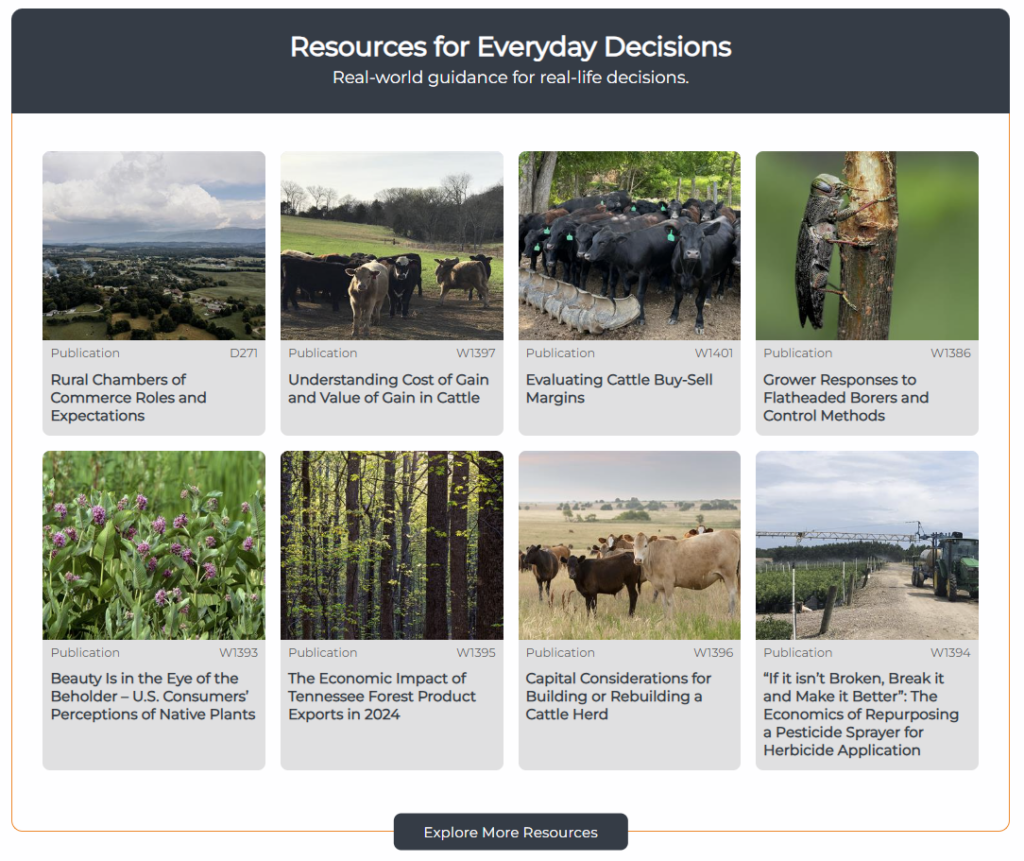
The UTIA Resource – Multi Block is a custom block that can be used on any UTIA website to highlight a group of publications found on the Solutions website.
Click on the UTIA Resource – Multi Block icon in UTIA Custom Blocks.
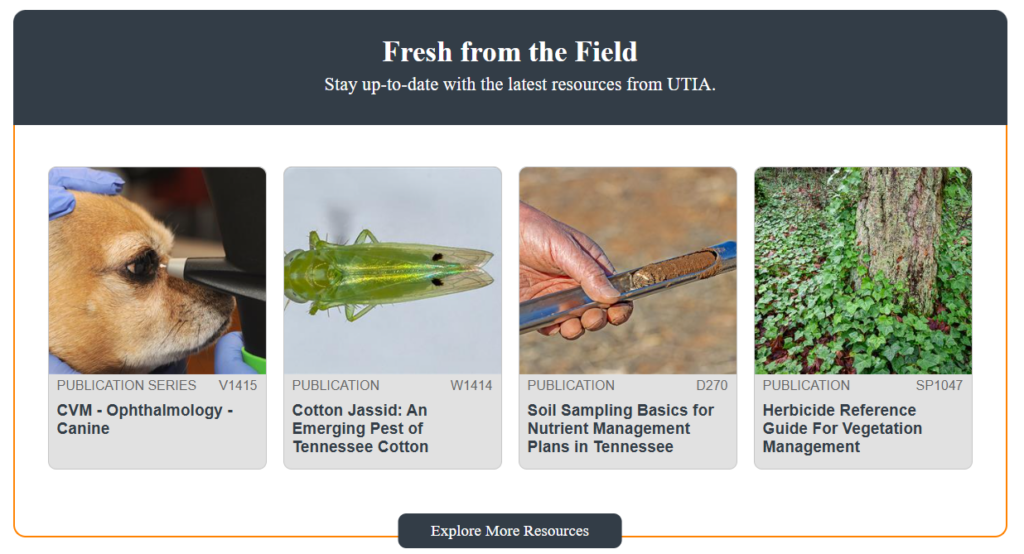
The Multi Resource block will appear on the web page. The most recently published resources will be showing.
2 – Section Header – Title and Subtitle
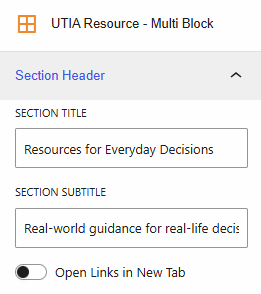
In the right sidebar, when you click the down arrow to the right of Section Header, you will find where you can edit the title and subtitle of the block.
Tip: Use a title and subtitle that explain the resources being presented such as if they are resources about a specific topic or by a specific department or center.
You can also select whether to open links presented in the block in a new tab.
3 – Import from URL
You have two options for selecting which resources to be included in the block.
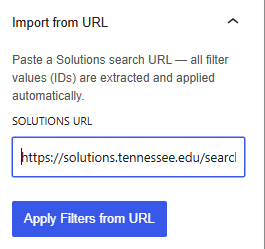
The first is to use an URL. To do this go to the Solutions website and on the Search Our Solutions page select the desired filters. Click the “Copy Share Link” button. Then in the Import from URL section, paste the copied URL into the Solutions URL field and then click “Apply Filters from URL”.
This will copy the needed values associated with the selected filters and apply them to the block so that it shows only those resources that meet the selected criteria.
4 – Filters
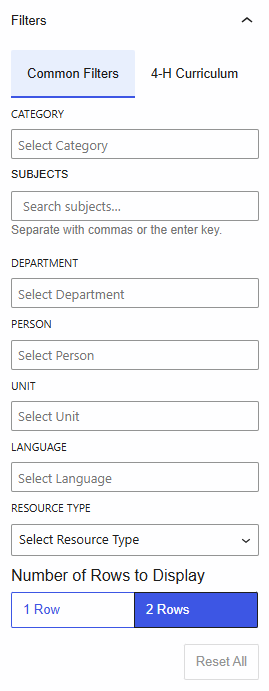
The second option is to select the filters you would like applied just as you would on the Solutions website. There are two tabs of filters to select from – Common Filters and 4-H Curriculum.
If you need to start over, you can always click the Reset All button.
You can also select whether to show one or two rows of resources in the block. If there are less than four resources showing, the cards will be centered in the block.
4 – Final Product