1 – Where Do I Start?
The UTIA Resource – Single Block is a custom block that can be used on any UTIA website to highlight a single resource such as a publication found on the Solutions website.
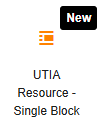
Click on the UTIA Resource – Single Block icon in UTIA Custom Blocks.
The Single Resource block will appear on the web page.

2 – Selecting a Resource
In the right sidebar, you will find the options to select a Resource Type and then a specific resource to show in the block.
Click “Select resource type” to choose from a dropdown list of options. Currently, you can select Publication or Publication Series.
Once you have selected the type of resource, you can then click within the Select Resource field to see a list of resources to choose from. You can also start typing to filter down the options. You can search on the publication or publication series number or title.
3 – Layout & Display
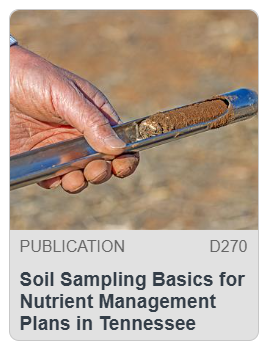
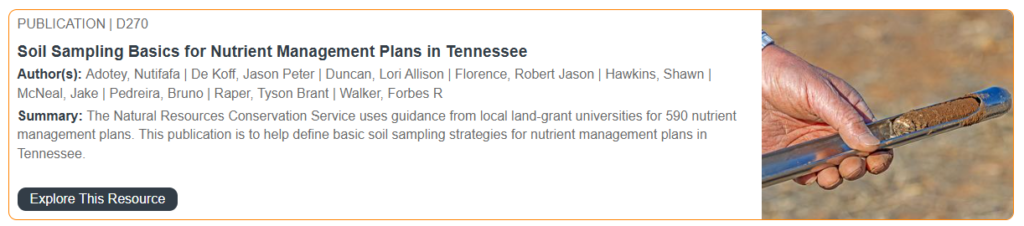
In the Layout & Display section, you can select from two layout options. Layout 1 is the portrait card view and Layout 2 is the horizontal view.
You can also select the background color to use – gray or white. The white background will have an orange border.
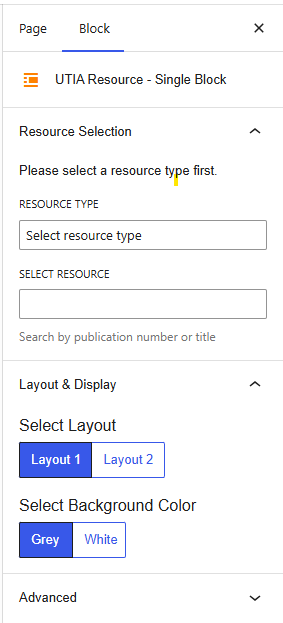
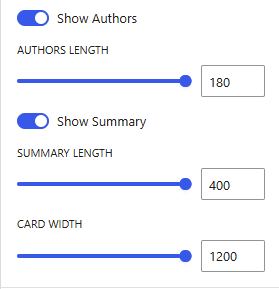
When you select Layout 2, you will have the ability to show or hide the authors, set the length of the list of authors, show or hide the summary, set the length of the summary text to show, and set the width of the card. The max card width is determined by the width of the container the block is placed within.
ACCESSIBILITY TIP: When configuring the author list length and summary text length, be mindful of where the text is truncated. To ensure the best experience for visitors using screen readers:
- Author list — set the length so that it ends after a complete first name, not mid-name
- Summary text — set the length so that it ends after a complete word, not mid-word
Screen readers will read exactly what is displayed on the page, so truncated names or words can cause confusion for visitors who rely on assistive technology.
4 – Final Product